Settings
Use Settings to choose your default AI service, adjust the sidebar, and manage reusable values for your workflows.
Overview
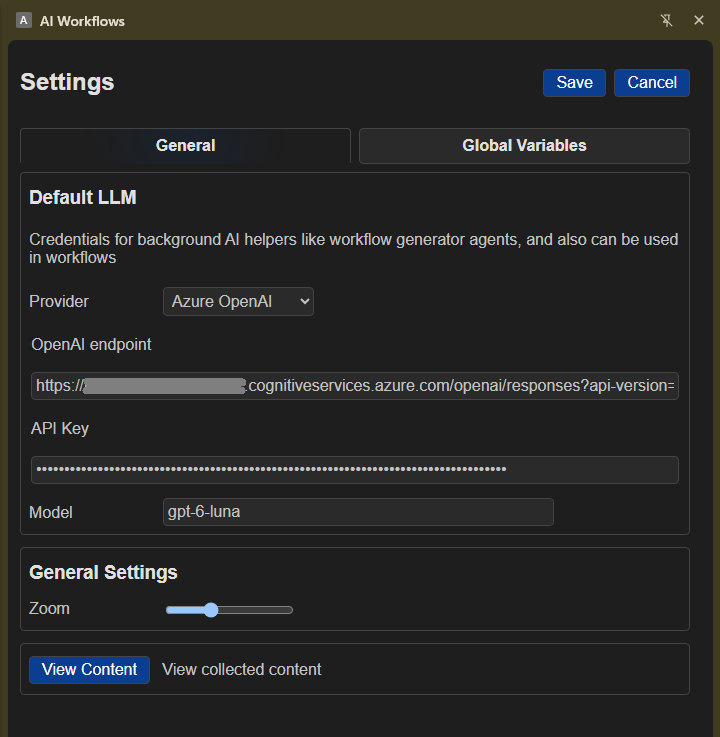
Open Settings from the sidebar header, workflow list, or agent creation panel. Use it to choose your default AI service, adjust text size, and manage reusable workflow values. Choose Save to keep your changes or Cancel to discard them.
Simple examples
- Set up your AI service once, then use it for workflow steps that are set to use the default AI settings.
- Save a webhook address or API key as a reusable value instead of entering it in every workflow.
- Make the sidebar text larger or smaller to suit your screen.
- Review or export text saved by an Append Content action in the Content Viewer.
Default AI settings
In the General tab, choose a provider and enter the connection details it requires:
- Provider: Choose your AI service. The endpoint is filled in for supported providers; choose a custom endpoint if needed.
- OpenAI Endpoint: The service address. Check your provider's instructions if you use a custom endpoint.
- API Key: Enter the key supplied by your AI service. You may need to create an account with that service to get a key.
- Model: Enter the model name provided by your service.
These settings power the extension's AI helper features. Workflow AI steps can also use them when Use Default LLM Config is selected, so you do not have to enter the same connection details in each step.
General settings
- Sidebar text size: Use the size slider to make text in the sidebar smaller or larger. Changes take effect as you move the slider.
- View Content: Open the Content Viewer in a browser tab to inspect, copy, export, or clear text saved by Append Content actions.
Global Variables
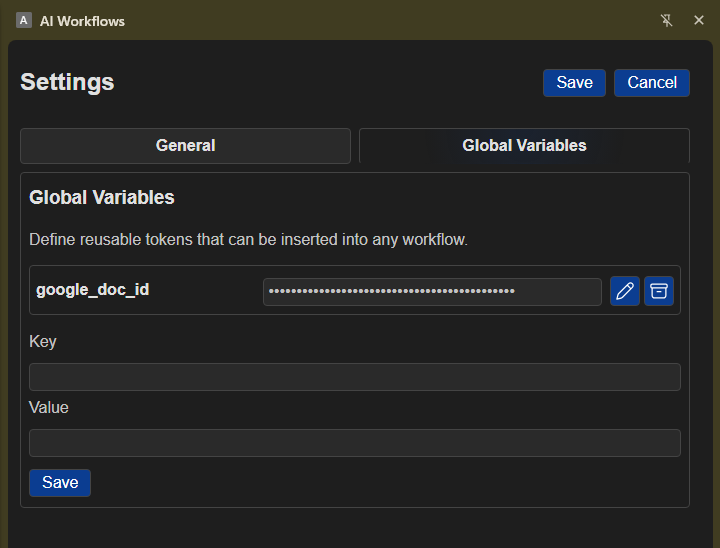
Use this tab to save values you reuse in workflows, such as API keys, webhook addresses, and document IDs. You can add, edit, or delete saved values. Values are hidden when displayed to help protect them from being seen on screen.
(Bearer Token in API/Webhook headers)
To add a value, enter a name and its value, then save it. Names can contain letters, numbers, and underscores. In a workflow, choose a saved value from the Insert workflow token menu in a supported field.