Create a workflow
Use the Create Workflow screen to make a workflow that automates tasks in your browser. You can describe what you want, start from a sample, or build one yourself.
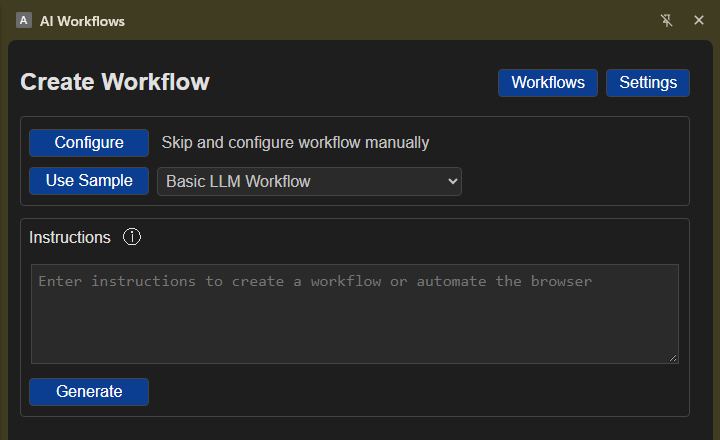
Overview
There are three ways to get started:
- Describe the task and let AI prepare a workflow. Open the webpage where you want to use it first.
- Choose a sample workflow and adjust it to suit your needs.
- Start with a blank workflow and add steps yourself.
Simple examples
- Summarize a webpage and send the summary to Slack.
- Save selected webpage details to a Google Doc or Google Sheet.
- Create a Gmail draft with details from the current webpage.
- Show information from a webpage in the sidebar when the page opens.
Header buttons
- Workflows opens your saved workflows.
- Settings lets you set up AI services and manage information reused by workflows.
- Back returns to the previous screen when available.
If something goes wrong, an error message appears at the top of the screen.
Choose a starting point
Start from a blank workflow
Select Configure to open the workflow editor and add the steps you need.
Use a sample workflow
Choose a sample from the list, then select Use Sample. The workflow opens so you can review it, make changes, or run it. Samples include workflows for answering questions about a webpage, saving details to Google Docs or Sheets, drafting an email in Gmail, and sending a summary to Trello.
Ask AI to create a workflow
- Open the webpage where you want the workflow to run.
- Enter a short description of what you want to do in the instructions box. For example: “Find a product, add it to the basket, and open the basket.”
- Select Generate and wait for the workflow to appear.
Start with a simple task. You can add more steps or adjust the workflow afterward. AI features require an AI service to be configured in Settings.
Example prompt
Find the product title and price on this page, summarize the product, and send the summary to Slack.
The generated workflow can use details from the open webpage, create a summary, and send it to Slack. You can review and adjust the workflow before running it.
If something goes wrong
- AI setup message: Set up an AI service in Settings before using AI features.
- Instructions are missing: Enter a description before selecting Generate.
- The workflow could not be created: Make your instructions clearer or break the task into smaller steps.
- The extension cannot reach the webpage: Refresh the webpage and try again.